

Prerequisites
- Admin access to the Slack workspace you want to connect (or permission to install apps)
- A Modem organization
Setup
1
Start the connection
Go to Settings → Integrations → Slack in your Modem dashboard and click Connect Slack.
2
Authorize Modem
You’ll be redirected to Slack to authorize the Modem app. Review the permissions and click Allow.
Modem requests access to read messages in channels and respond to users who interact with the Modem Agent.
3
Add Modem to channels
Invite the Modem bot to channels you want it to monitor. See Adding Channels below.
4
Talk to the agent
DM or @mention the Modem bot to ask questions and take action. See Talking to the Agent.
Adding Channels
Modem monitors any channel the bot has been added to. You can add the bot to a channel in a few ways:- Use
/invite @Modemin the channel - Mention
@Modemin the channel - Open the channel’s Members tab and add Modem under Integrations
Channel Notices
Modem tells a channel it is subscribed, so nobody is surprised to learn later that their messages were analyzed. There are no hidden channels: every channel Modem is subscribed to has said so in the channel itself. When Modem is added, it posts a message everyone in the channel can see. It names who added it (or, on an auto-join, the channel-name pattern that matched) and says that messages posted there are analyzed even when@Modem isn’t mentioned.
When someone joins later, they get the same disclaimer as a private note only they can see. They weren’t in the channel to read the original notice, so Modem tells them directly. That note doesn’t tell them how to unsubscribe: undoing a decision the channel already made isn’t a newcomer’s call.
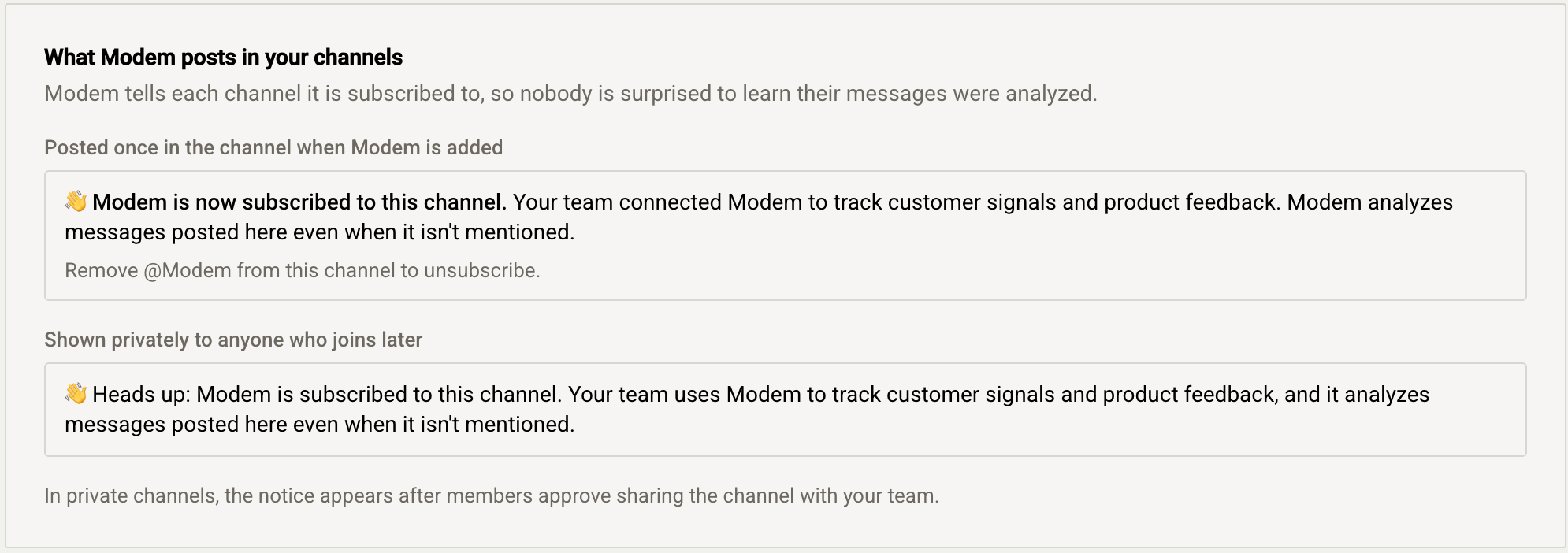
@Modem from a channel unsubscribes it.
Recommended Channels
#supportor#help: Customer support requests#feedbackor#suggestions: Feature requests and ideas#bugsor#issues: Bug reports- Slack Connect channels shared with your customers
Channels to Avoid
- Social channels
- Bot notification channels (high noise, low signal)
- Channels with sensitive information
Auto-Join by Channel Prefix
If you use Slack Connect or follow a naming convention for external channels (e.g.#ext-acme, #ext-bigcorp), you can configure Modem to automatically join new public channels that match a prefix.
Go to Settings → Integrations → Slack and enable Auto-join channels. Add one or more prefixes (e.g. ext-, partner-). When a new public channel is created or renamed to match a prefix, Modem will join it automatically.
Auto-join only applies to public channels. Private channels must be added manually, and require a member’s approval. See Private
Channels.
Private Channels
Modem treats private channels differently from public ones: nothing from a private channel enters Modem until a member of that channel shares it with your team.Sharing a Private Channel
When @Modem is invited to a private channel, it doesn’t start capturing messages. Instead, it posts a message in the channel asking its members to decide:
- Share with team: Modem subscribes to the channel and starts capturing messages from that moment forward. Conversation history from before the channel was shared is not imported.
- Keep private: Modem captures nothing from the channel. This isn’t permanent: any member can share the channel later by removing and re-inviting @Modem. To avoid spamming the channel, Modem waits about a week after its last prompt before asking again.
@Modem. Members who join the channel after it was shared see a one-time private note with the same disclaimer.


What Sharing Means
Once shared, a private channel behaves like any other monitored channel: its messages, topics, and participants are visible to everyone in your Modem organization, and the channel can be used as a destination for Modem output (reports, notifications). Sharing is the channel members’ decision to make those conversations team-visible in Modem.Private Channel Names Stay Private
Until a member shares it, a private channel doesn’t appear anywhere in the Modem dashboard, not even its name. Unshared private channels are hidden from the channel list for everyone in your organization, including admins, and mentions of private channels in captured messages only resolve to channel names once the channel has been shared. After a member shares the channel, it appears in Settings → Integrations → Slack with a check in the Sharing column.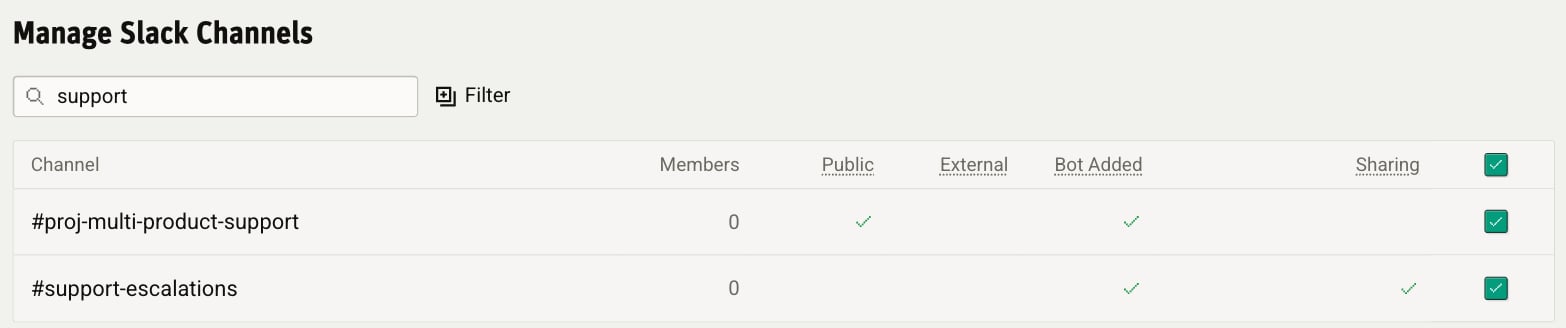
Talking to the Modem Agent in Slack
The same Modem Agent available on the web is also available directly in Slack. You can DM the Modem bot or @mention it in a channel to ask questions, get summaries, or take action on your data without leaving Slack. You can reach the agent two ways:- Direct message. Open a DM with the Modem bot to start a conversation.
- @mention in a channel. Mention @Modem in any channel where the bot has been added.
The Modem bot must be added to channels where you want to use @mentions.
Who Can Talk to Modem?
Only authorized users can interact with the Modem Agent in Slack. Authorization requires two things:- A linked Modem account. Your Slack identity must be connected to a Modem account. If it isn’t, the bot will prompt you to connect your account.
- Organization membership. You must be a member of the Modem organization connected to that Slack workspace. If your account is linked but you’re not a member, you’ll see an access denied message and need an administrator to invite you.
Auto-Join for Slack Workspace Members
By default, only users who have been invited to your Modem organization can interact with the agent. If you want your whole Slack workspace to have access, you can enable Allow Slack workspace members to join Modem in Settings → Integrations → Slack. When enabled, any member of your Slack workspace can automatically join your Modem organization by linking their Slack account. This is useful if your Slack workspace already represents your team and you don’t want to manage invitations separately.Troubleshooting
Messages aren't appearing
Messages aren't appearing
- Verify the channel is selected in integration settings - Check that the Modem app is installed in the workspace - For private channels, ensure Modem has been added to the channel and a channel member has approved sharing it (see Private Channels) - Allow a few minutes for initial sync to complete
A private channel isn't listed in the dashboard
A private channel isn't listed in the dashboard
Private channels don’t appear in Modem (not even by name) until a member of the channel approves sharing. Invite @Modem to the
channel and have any member click Share with team on the prompt it posts. See Private Channels.
History from a private channel is missing
History from a private channel is missing
Modem only captures a private channel’s messages from the moment it was shared. Conversations from before a member approved sharing
are not imported.
Historical messages are missing
Historical messages are missing
Slack API limits historical access to approximately 90 days for free workspaces and 10,000 messages for paid workspaces. Modem can
only access what Slack makes available.
User emails aren't showing
User emails aren't showing
User email visibility depends on workspace settings. If your workspace restricts email visibility, Modem won’t be able to access
them.
Disconnecting
To disconnect Slack:- Go to Settings → Integrations → Slack
- Click Disconnect
- Go to your Slack workspace settings
- Navigate to Apps
- Find Modem and click Remove