

What your customers want is already in your Slack.
Modem is an AI product manager for software teams. It reads the channels you add it to and turns requests, bug reports, and churn signals into topics, tied to the people and companies who raised them.
How Modem works in Slack
After you install it, Modem shows up as a bot user called Modem. Mention it in any channel it has been added to and it answers in the thread:
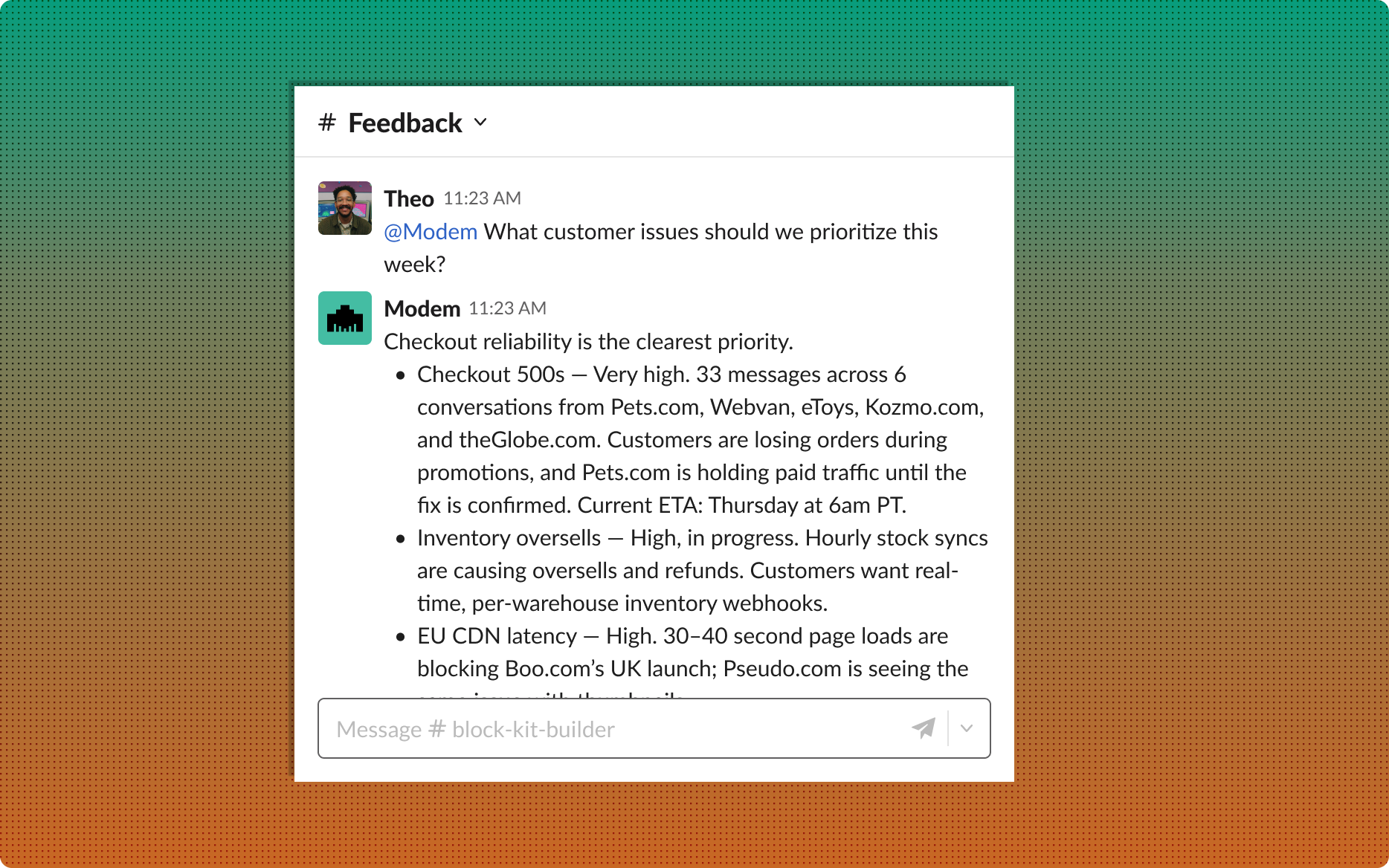
Ask it anything
@-mention Modem in a channel or send it a direct message. It answers from your team’s and customers’ conversations, searching by meaning rather than keywords.
Use the assistant pane
Open Modem from Slack’s AI assistant sidebar. It picks up the context of whichever channel you are reading.
Reach your connected tools
Ask about something living in another tool and Modem pulls it in. It answers using the integrations your team has connected, from PostHog to Linear to GitHub, without anyone switching apps.
Turn talk into work
File a Linear or Jira ticket, draft release notes, or summarize a long thread without leaving Slack.
Hear about it first
Modem posts to the channels you choose when a topic starts spiking or a customer’s request ships.
Cluster a channel into topics
Invite Modem to a channel and it groups what it hears into topics on its own. No tagging, no manual triage.
What those conversations turn into
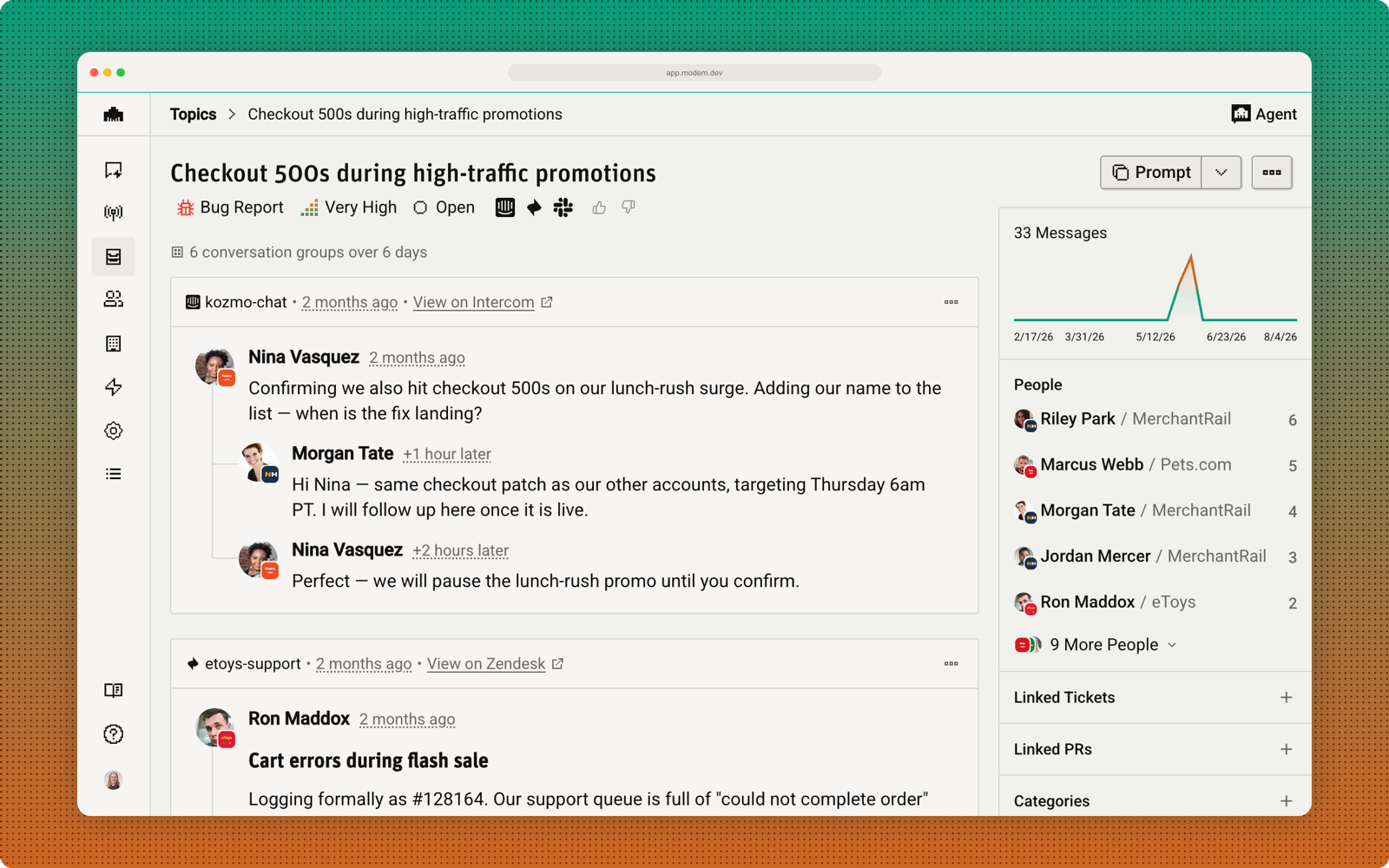
Slack is one of the places Modem listens. Everything it hears lands in one prioritized view at app.modem.dev, grouped by what people are actually asking for.
Slack Discord
 Email
Email Zendesk
 Intercom
 Linear
 Jira
Jira GitHuband more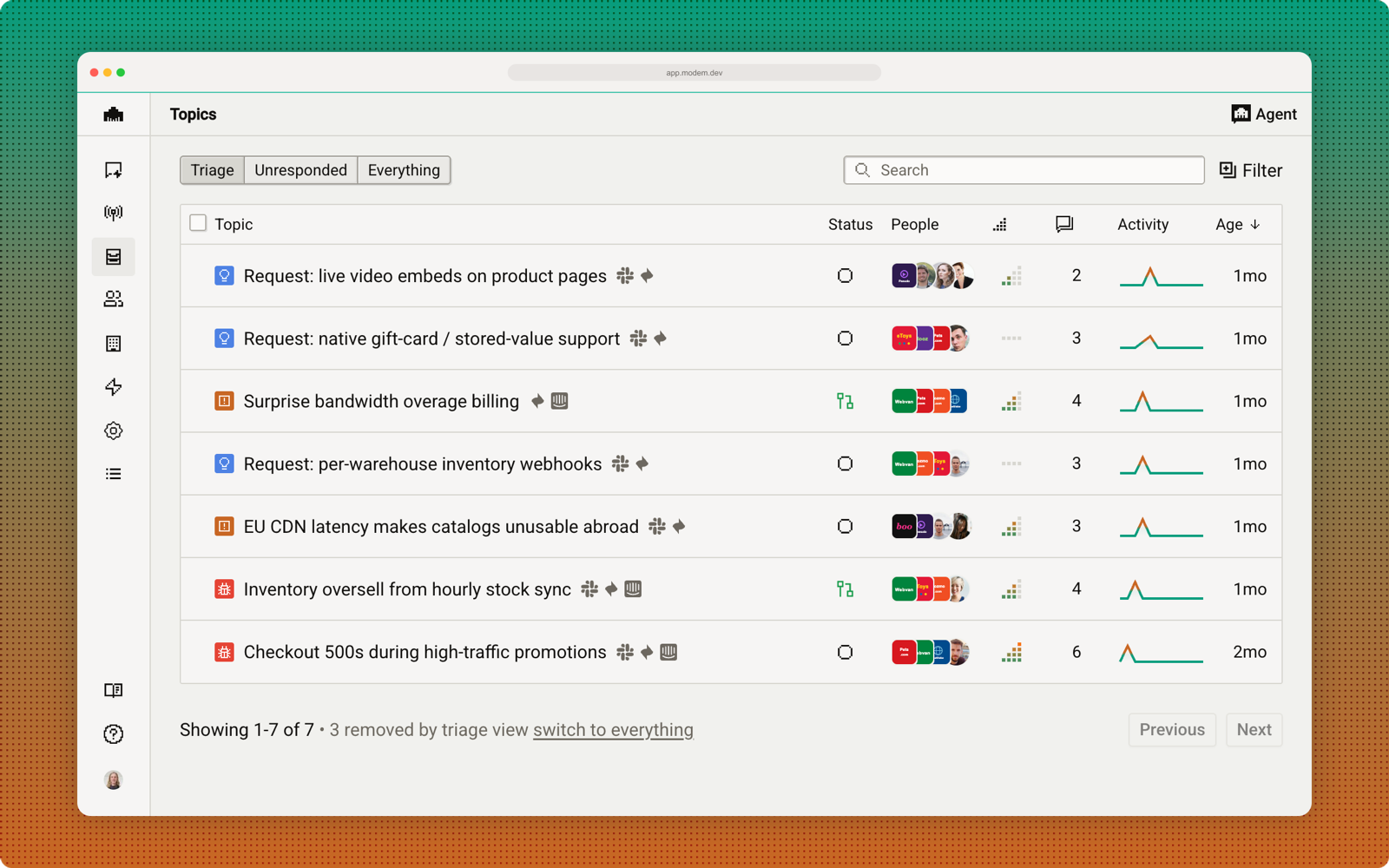
How to install Modem in Slack
Installing takes about two minutes. You need a Modem account and permission to install apps in your Slack workspace.
- 1
Create a Modem account
Sign up at app.modem.dev/auth/signup. Modem has a free plan, so you do not need to pay to install the Slack app.
- 2
Open Settings → Integrations → Slack
In your Modem organization, go to Settings → Integrations → Slack and press Connect Slack. This is where the Add to Slack button lives. It is inside the product rather than on this page because installing links your Slack workspace to one specific Modem organization.
- 3
Approve the permissions in Slack
Slack shows you exactly which permissions Modem is asking for. Review them and press Allow. You need permission to install apps in your Slack workspace; if you do not have it, Slack will offer to send a request to a workspace admin.
- 4
Land back in Modem and pick your channels
Slack returns you to Modem, which confirms the workspace is connected and walks you through choosing the channels to add Modem to. Nothing is read until you do this.
- 5
Invite Modem to a channel
In any channel you want Modem in, type
/invite @Modem, or add it from the channel’s Integrations tab. You can also just @-mention it and Slack will offer to add it.
What Modem reads, and what it doesn’t
Modem only reads messages in the channels you add it to. It is not reading your whole workspace.
Public channels
Modem reads a public channel once someone adds it to that channel, and it stops when you remove it. It posts a notice in the channel when it is added, and shows anyone who joins later the same disclaimer. You can see and change the full list of channels at any time in Modem’s Slack settings.
Private channels
Being added to a private channel is not enough. Modem posts a message in the channel asking its members to decide, and reads nothing until someone approves.

Removing Modem
Type /remove @Modem in a channel to take it out of that channel, or disconnect the whole workspace from Modem’s Slack settings, which revokes our access token.
AI disclaimer
Modem runs on large language models. Like any generative AI it can get things wrong. Answers, summaries, tickets, and release notes can be inaccurate or incomplete, so read what it gives you before acting on it or sending it to a customer. Modem cannot change your account settings, and it only uses the tools you give it.
Your data
How we collect, use, retain, and delete data, and how to make an access or deletion request, is covered in full in our privacy policy. Our security posture and subprocessors are in the trust center.
Support
Email us with any question about the Slack app: installation, permissions, billing, or a data request. You do not need a Modem account to contact us.